Ramoga Keynote Template: Build Better Presentations
If you have spent any time crafting slides for a keynote—whether for a client pitch, a classroom lecture, or an internal team meeting—you already know how quickly the design process can become a bottleneck. Selecting colors, aligning elements, and ensuring visual consistency across dozens of slides takes time that you could otherwise spend refining your message. The Ramoga Keynote Template aims to solve that specific problem by providing a complete structure that feels cohesive out of the box, while still giving you the flexibility to make it your own.
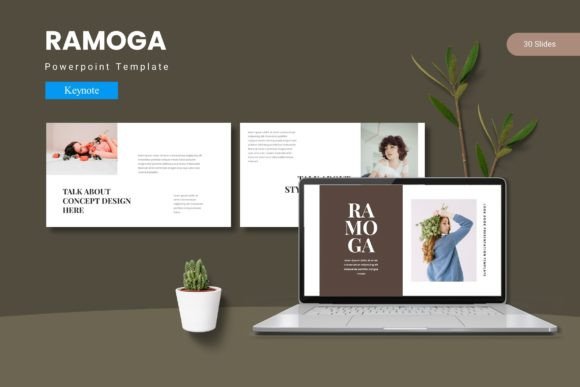
This is not just a collection of generic backgrounds. It is a thoughtful system built around master slides, handcrafted infographics, and multiple color variations. Whether you are a seasoned presenter or someone who only builds decks occasionally, Ramoga offers a practical way to elevate your slides without needing advanced design skills.
What Makes This Template Different
The first thing you notice when opening Ramoga is the sheer volume of content. With 150 total slides spread across five pre-made color schemes, you are not left hunting for missing pieces. Each color variant includes 30 slides, which means you can pick a palette that fits your brand or mood and immediately start building. The inclusion of section break slides is a small but meaningful touch—transitions in a presentation often feel abrupt, and having dedicated slides to signal a new topic helps your audience stay oriented.
Another standout quality is the reliance on master slides. Instead of manually adjusting every element on every page, you can make global changes to fonts, colors, or layouts that cascade through the entire deck. This is where the template saves real time. If your client requests a font change halfway through the project, you apply it once, and the work is done.
The template also includes pixel-perfect illustrations and infographics that are fully resizable and editable. You are not stuck with static images. Every graphic can be adjusted, recolored, or repositioned to match your content. The picture placeholders operate on a simple drag-and-drop model, so swapping out a sample photo for your own image takes seconds.
A Closer Look at the Design System
The decision to bundle five distinct color schemes is one of those features that seems small but has outsized practical value. Rather than forcing you to start from scratch if the default palette does not align with your brand guidelines, Ramoga gives you ready-to-use alternatives. Each scheme maintains the same underlying layout structure, so switching between them does not break your flow or require rework.
The handcrafted infographics deserve a special mention. Many templates include generic charts and diagrams that look dated or feel disconnected from the rest of the design. Here, the infographics are built to match the overall aesthetic, which means your data visualizations look like they belong. If you present quarterly results, process flows, or comparison data, you will find slides that handle those scenarios cleanly.
The gallery and portfolio slides are an unexpected bonus. For creative professionals—photographers, designers, architects, or marketers—these slides let you showcase work in a structured way that remains on-brand. Even if you primarily use the template for internal presentations, having these options available means you are covered for client-facing projects as well.
Practical Applications Across Different Contexts
Ramoga is versatile enough to work in a variety of settings, which is important when you are investing in a template that you plan to reuse. Here are some realistic scenarios where it fits naturally.
Professional Environments and Client Work
If you are a consultant, agency professional, or freelancer, your presentations often serve as a reflection of your competence. A disjointed deck can undermine even the strongest data. With Ramoga, you can assemble a pitch deck or project proposal that looks polished from the first slide to the last. The section break slides are especially useful here—when you move from the problem statement to your proposed solution, a clear visual transition helps the audience follow your argument.
For marketers presenting campaign results or strategic plans, the infographic slides allow you to display metrics and KPIs in a way that is easy to digest. The editable nature of these graphics means you can update numbers on the fly without needing to recreate charts in a separate tool.
Educational and Training Settings
Educators and trainers often face the challenge of keeping learners engaged through slide-heavy sessions. Ramoga's visual variety—thanks to the multiple color schemes and layout options—helps break the monotony. You can use the portfolio slides to show examples of student work or case studies, and the infographics to explain complex concepts step by step. The drag-and-drop image placeholders also make it easy to swap in relevant visuals for each class or training cohort.
Creative and Personal Projects
For bloggers, publishers, and content creators, presentations serve as lead magnets, webinar slides, or pitch decks for collaborations. Ramoga's clean aesthetic and editable graphics let you create something that looks custom without hiring a designer. The gallery slides are a natural fit for photographers or artists who want to present their portfolio in a digital format that feels modern.
Hobbyists and entrepreneurs can also benefit. Whether you are pitching an idea to investors, presenting at a local meetup, or running a workshop, the template reduces the friction between your idea and a finished deck. You spend less time adjusting margins and more time refining your message.
Usability and Efficiency Considerations
One of the most practical aspects of Ramoga is how it handles global edits. Since the template is built on master slides, changing your mind about a font or color does not mean painstakingly updating each slide. You make the change once, and it propagates automatically. This is especially valuable when you are working under a tight deadline and need to iterate quickly.
The 5 color variation system also reduces decision fatigue. Instead of spending thirty minutes debating between shades of blue, you can start with the color scheme that is closest to your needs and tweak from there. For teams that maintain brand consistency across multiple presentations, having a template that already aligns with your brand colors—or can be easily adapted—is a significant time saver.
The file structure itself is straightforward. The main file includes five Keynote files (one per color scheme), a readme, and a folder with font and photo information. That means you do not have to hunt for assets or guess which version to open. The readme provides basic orientation, and the font list ensures you install what you need before starting.
A Few Practical Observations
No template is perfect for every situation, and Ramoga is no exception. The strength of the template lies in its structure and pre-built assets, which means you get the most value when you work within that structure. If you are the kind of presenter who prefers to build slides from a completely blank canvas, you might find the pre-designed layouts restrictive. But for most professionals, the trade-off is well worth it—you trade a small amount of creative freedom for a massive gain in speed and consistency.
Another consideration is the learning curve with master slides. While the concept is straightforward, some users may initially find it unfamiliar. If you are new to Keynote, it is worth spending fifteen minutes understanding how the master slide system works. Once you do, the template becomes significantly more powerful. The readme file included in the folder provides a helpful starting point, but you can also find quick tutorials online that explain the basics.
When selecting a color scheme, think about your primary use case. If you are creating presentations for a corporate environment, a neutral or muted color palette will likely serve you better than a bright, saturated one. The five options in Ramoga cover a decent range, so you can match the tone to your audience without compromising the design quality.
Final Thoughts on Getting the Most Out of Ramoga
The Ramoga Keynote Template is a practical tool for anyone who needs to produce professional presentations efficiently. It eliminates the repetitive work of formatting and alignment, giving you a solid foundation that still allows for customization. The 150 slides, five color variations, and editable infographics cover a broad spectrum of use cases—from corporate pitches to creative portfolios.
If you regularly build presentations for clients, students, or your own projects, this template can shave hours off your workflow. It also helps maintain a consistent visual identity across multiple decks, which is harder to achieve when you are starting from scratch each time. The key is to lean into the master slide system and treat the template as a starting point rather than a rigid framework. Make adjustments where needed, swap in your own imagery, and let the structure handle the rest.
In a world where your audience's attention is finite, the quality of your slides directly impacts how your content is received. Ramoga does not replace the work of crafting a compelling story, but it does remove the design friction that can distract from that story. And for most presenters, that is exactly what a good template should do.